Tag Archives: 2026

Welcome Back! Technology Is Here to Help

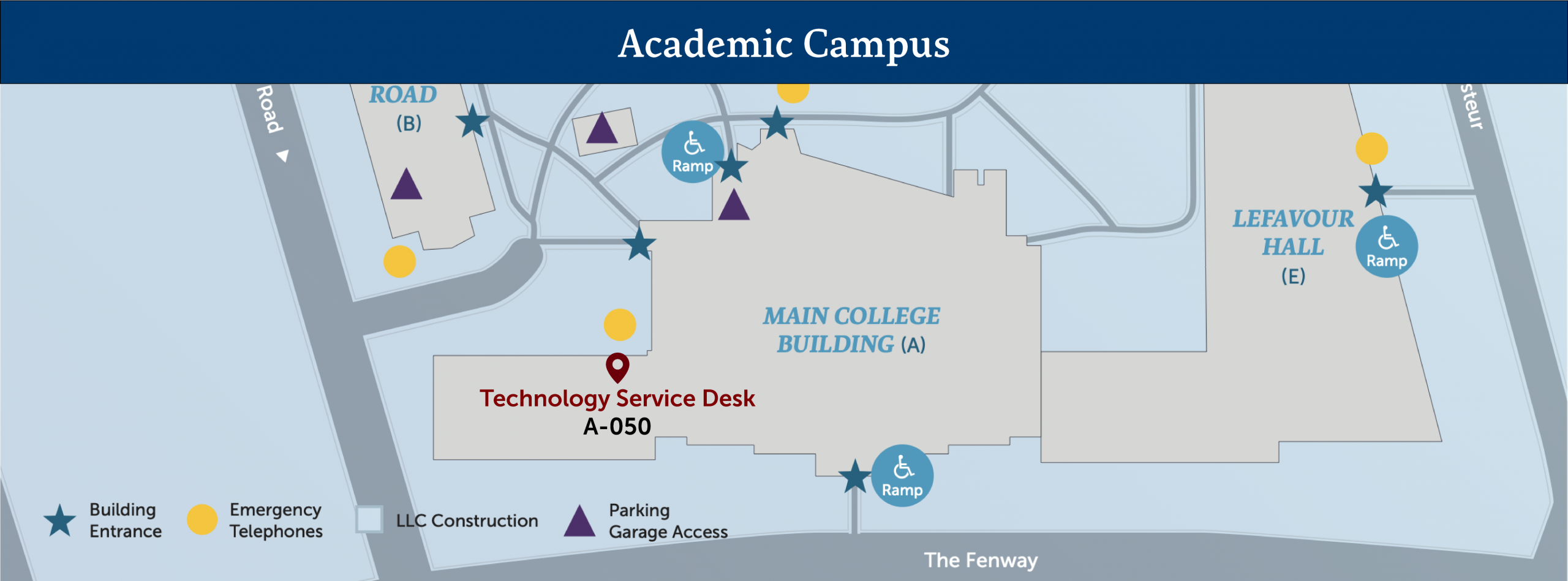
Image of campus map with technology support center Ground Floor A-050

Whether you’re arriving at Simmons for the first time or returning for another year, Technology is ready to support you.

Visit the Technology Service Desk on the ground floor of the MCB in room A-050. Walk-up assistance and equipment loans are available Monday through Friday from 8:00 a.m. to 6:00 p.m.

Working or learning remotely? You can still turn to the Service Desk for help with computer problems, account access, Moodle, Zoom, and many other technology-related questions.

Visit the Technology Service Desk website to find contact information, support hours, FAQs, service request forms, classroom and event support, and hardware and software discounts.

Workday Navigation Changes Coming September 19th!

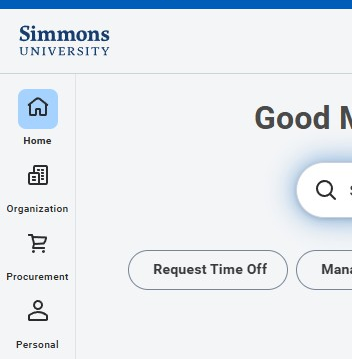
Image of customizable navigation sidebar

Workday is updating the way you navigate the system on September 19, 2026. The current menu is being replaced with a customizable navigation sidebar, giving you more control over how you organize and access the apps, tasks, and reports you use most often.

With the new sidebar, you can:

  • Pin up to four apps for quick access from the Workday homepage. These will replace the current Your Top Apps section.
  • Find and add apps available to you directly from the navigation sidebar.
  • Reorder apps and categories to organize Workday in a way that works best for you.
  • Use the Saved section to quickly access tasks and reports you use frequently.
  • Select the gear icon to adjust your navigation preferences—including the option to continue displaying the familiar clickable Menu button.

Need Help?

For step-by-step instructions on using and customizing the new navigation sidebar, see Workday Global Menu Navigation in the Technology Knowledge Base.

Technology will hold two virtual drop-in sessions for anyone who would like help getting familiar with the new navigation:

  • Tuesday, September 22, 11:00 a.m.–12:00 p.m. ET
  • Wednesday, September 23, 1:00–2:00 p.m. ET

Stop by at any point during either session with questions or for a quick walkthrough of the new sidebar.

Can’t make either session? Email your question to [email protected]

Reporting Phishing: Your Reports Help Everyone

We’ve seen an increase in both the number and sophistication of phishing attempts targeting members of the Simmons community, particularly faculty and students. These messages are becoming more convincing and can sometimes appear to come from people, organizations, or services you recognize.

If something about a message seems suspicious, the most helpful thing you can do is report it as phishing in Gmail.

Report it, don’t forward it

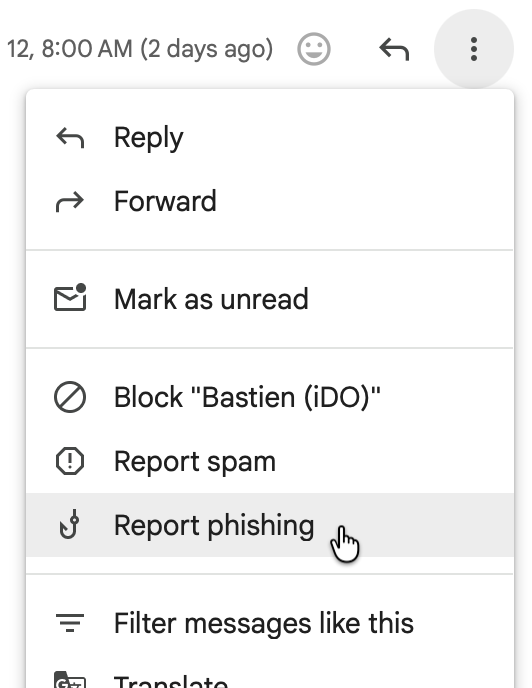
Image of Report phishing menu item

When you report a message as phishing, you’re doing more than removing it from your inbox. Your report alerts Technology to the phishing attempt so that we can investigate it. The sooner we receive those reports, the sooner we can respond—including working to identify and quarantine similar messages before more members of the Simmons community encounter them.

In Gmail on your computer while viewing the suspicious message:

  1. Select the three-dot menu next to the Reply button.
  2. Choose Report phishing.

There’s no need to forward the suspicious message to Technology. In fact, reporting it through Gmail is much more useful to us than forwarding it, because the report gives us what we need to begin investigating.

And if you’re not sure whether something is phishing? It’s okay to report it. We’d rather take a look.

What if I already clicked?

If you clicked a link in a suspicious message and possibly entered your Simmons username and password, contact the Technology Service Desk  immediately.

We can help secure and thoroughly reset your account to make sure that someone else hasn’t gained access. The sooner you contact us, the sooner we can help protect both your account and the Simmons community.
Adobe Express Is Now Available

Image of Adobe Express logo

Adobe Express is now available to Simmons students, faculty, and staff using your Simmons account.

Adobe Express is a web-based design and content creation tool that makes it easy to create polished visual materials without needing experience with applications like Photoshop or Illustrator. You can start with a template or create something from scratch.

Use Adobe Express to create things like:

  • Flyers, posters, and event graphics
  • Presentations and infographics
  • Social media graphics and videos
  • Resumes and other documents
  • Simple photo and video projects

Get Started

There’s no separate account to create. Sign in with your Simmons email address and choose your Simmons organizational account when prompted.

For sign-in instructions, visit Accessing Adobe Express at Simmons.

Delegate Accounts Now in the GMail Mobile App

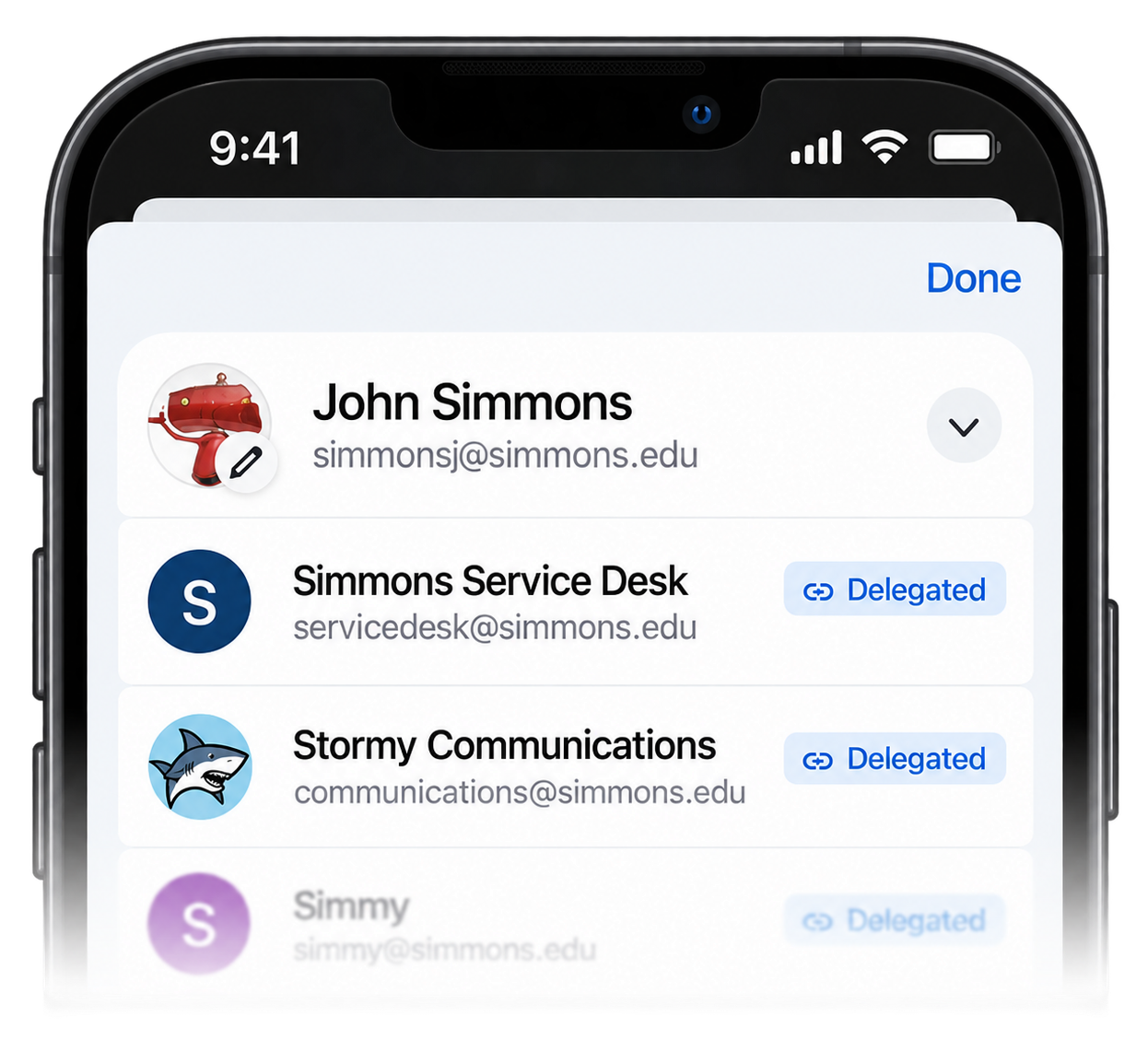
Image of delegated Gmail account list examples

If you use a delegated Gmail account at Simmons, you can now access it directly from the Gmail mobile app on your phone or tablet.

Delegated accounts are commonly used for shared or departmental mailboxes, or when someone has been given permission to manage another person’s email. Until now, accessing these accounts generally required using Gmail in a web browser.

To open a delegated account in the Gmail app:

  1. Open the Gmail app.
  2. Tap your profile picture in the upper-right corner.
  3. Look for the account marked Delegated.
  4. Tap the account to open its inbox.

Once selected, you can read, manage, and send messages from the delegated account just as you would when using Gmail on your computer.

Don’t See Your Delegated Accounts?

Make sure you’re using the latest version of the Gmail app. If your app is already up to date but delegated accounts still don’t appear, removing and reinstalling the Gmail app may resolve the issue.